MacBook Keyboard Not Working Properly? Common Causes and Solutions
Is your MacBook keyboard not responding properly? Are some keys not working, typing the wrong characters, or requiring repeated presses? Keyboard problems can make even simple tasks frustrating and may affect your work, studies, or daily use.

A MacBook keyboard problem can have several causes. Dust and debris, software settings, liquid exposure, physical damage, or internal hardware faults can all affect keyboard performance.
Before assuming that the entire keyboard needs replacement, there are several things you can check.
1. Check Whether Only Certain Keys Are Affected
Start by testing different keys.
If only one or two keys are not responding, there may be debris underneath the affected keys or a local hardware problem.
If an entire section of the keyboard is not working, the problem may involve the keyboard assembly, internal connection, or another component.
2. Restart Your MacBook
A temporary software problem can sometimes affect keyboard input.
Restart your MacBook and test the keyboard again.
If the keyboard works normally after restarting but the problem repeatedly returns, further troubleshooting may be necessary.
3. Check Keyboard Settings
Incorrect keyboard settings can sometimes make the keyboard appear to be malfunctioning.
Check your keyboard and input settings and make sure the correct keyboard layout and language are selected.
If the keys work but produce unexpected characters, the problem may be related to the selected input settings rather than physical damage.
4. Check for Dust and Debris
Dust, food particles, and other debris can accumulate around MacBook keys.
This may cause keys to feel sticky, become difficult to press, or stop responding properly.
Avoid forcing objects underneath the keys, as MacBook keyboard mechanisms can be delicate.
If a key remains stuck or unresponsive, professional cleaning and inspection may be safer.
5. Check for Liquid Exposure
Liquid is one of the more serious causes of MacBook keyboard problems.
Coffee, tea, water, soft drinks, and other liquids can enter through the keyboard and potentially reach internal components.
Liquid damage may initially affect only a few keys but can later cause corrosion and other hardware problems.
If your MacBook keyboard stopped working after a liquid spill, professional inspection is recommended.
6. Check Whether the Keyboard Problem Started After a Drop
Physical impact can affect the keyboard, internal connections, or other components.
If the MacBook was recently dropped and certain keys stopped working afterward, the device should be inspected for physical damage.
Even if there are no visible marks, internal components can still be affected.
7. Check External Keyboard Functionality
If you have access to a suitable external keyboard, testing it can help determine whether the problem is isolated to the built-in MacBook keyboard.
If an external keyboard works normally while the built-in keyboard does not, the problem may be related to the MacBook’s keyboard hardware or connection.
8. Check for Software Problems
Keyboard behaviour can occasionally be affected by software problems or third-party applications.
If the keyboard problem occurs only in a particular application, test it in another application such as Notes or a web browser.
If the keyboard fails across multiple applications, further diagnosis may be required.
9. Some Keys Type Repeatedly
If one key enters the same character multiple times without being pressed repeatedly, there could be a mechanical, software, or hardware issue.
Sticky keys, debris, liquid damage, and keyboard faults can all produce unusual typing behaviour.
If the issue continues after restarting the MacBook, professional inspection may be necessary.
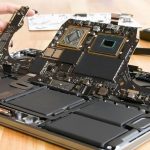
10. The Keyboard May Have an Internal Hardware Fault
If several keys are not working, the keyboard becomes completely unresponsive, or the problem continues after basic troubleshooting, the MacBook may have a hardware issue.
Possible causes include:
- Keyboard assembly problems
- Internal connection issues
- Liquid damage
- Physical impact
- Corrosion
- Component-level faults
- Logic board-related problems
A professional diagnostic inspection can help determine the actual cause before replacing the keyboard.
Signs Your MacBook Keyboard Needs Professional Attention
Consider getting your MacBook checked if:
- Multiple keys are not working
- Certain keys work intermittently
- Keys type repeatedly
- Keys feel unusually stiff or sticky
- The keyboard stopped working after liquid exposure
- The problem started after a drop
- The keyboard is not recognised properly
- The built-in keyboard stops working while an external keyboard works normally
- Basic troubleshooting does not resolve the issue
What Should You Do If Liquid Spills on Your MacBook?
If liquid is spilled on the keyboard, stop using the MacBook and disconnect the power source if it is safe to do so.
Avoid repeatedly turning the device on to check whether it works.
Do not use a hair dryer or direct heat to dry the MacBook.
Liquid can travel beneath the keyboard and reach internal components, so professional inspection can help identify potential damage before it becomes more serious.
Can a MacBook Keyboard Be Repaired?
The appropriate solution depends on the MacBook model and the cause of the problem.
Some issues may be resolved through cleaning or addressing a connection problem, while damaged keyboard components may require replacement.
If liquid or physical damage is involved, additional internal components may also need inspection.
MacBook Keyboard Repair in Guwahati
A MacBook keyboard that is not working properly does not automatically mean that the entire device needs replacement.
APPLE REPAIR CENTRE GUWAHATI provides MacBook keyboard diagnosis and repair services in Ulubari, Guwahati. Devices can be inspected for unresponsive keys, sticky keys, repeated keystrokes, liquid damage, physical damage, keyboard connection problems, and other hardware faults.
Our Business Details
APPLE REPAIR CENTRE GUWAHATI
Apple Repair Centre, Shima Plaza, 4th Floor, Opp. Prag News, Ulubari, Guwahati, Assam 781007
Phone: 9127586561, 8403921740
Website: https://www.applerepairguwahati.com
Connect With Us
Instagram: https://instagram.com/applerepaircentreguwahati
Facebook: https://facebook.com/
Frequently Asked Questions
Why are some keys on my MacBook not working?
Individual keys can stop responding because of dust, debris, mechanical damage, liquid exposure, software problems, or keyboard hardware faults.
Why is my MacBook keyboard typing the wrong characters?
Incorrect keyboard layout or input settings can cause unexpected characters. If the settings are correct, the issue may require further troubleshooting.
Can liquid damage a MacBook keyboard?
Yes. Liquid can enter through the keyboard and damage both the keyboard and internal components.
Can a MacBook keyboard be repaired after a liquid spill?
Repair possibilities depend on the amount of liquid exposure and the components affected. Professional inspection is recommended as soon as possible.
Why is my MacBook keyboard typing the same letter repeatedly?
A stuck key, debris, liquid damage, software problem, or keyboard hardware fault can cause repeated characters.
Should I replace the entire MacBook if the keyboard stops working?
Not necessarily. The cause should be diagnosed first. Depending on the problem, keyboard repair or replacement may be possible.
Where can I get my MacBook keyboard checked in Guwahati?
You can visit APPLE REPAIR CENTRE GUWAHATI at Shima Plaza, 4th Floor, Opp. Prag News, Ulubari, Guwahati for MacBook keyboard diagnosis and repair services.